Update your Valheim server
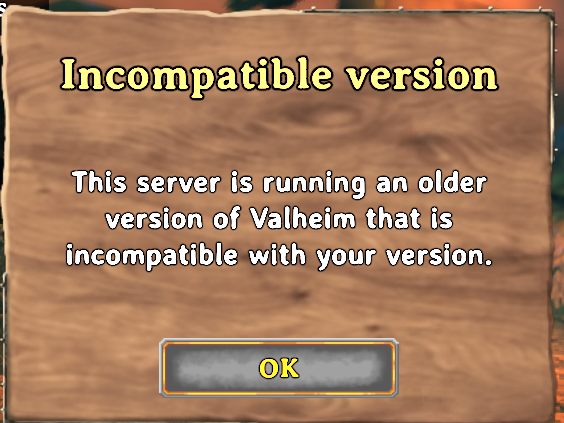
Updating a Valheim server means re-running SteamCMD's app_update 896660 against your install directory. If players see "Incompatible version," that's the symptom of a server behind on Iron Gate's latest patch. berrybyte automates the update on restart.
Iron Gate ships Valheim patches regularly, and your dedicated server needs to
be updated to match or players on a newer game client won't be able to join.
The mechanism is a SteamCMD app_update against app ID 896660, the same
download used to install the server in the first place. If players suddenly
see Incompatible version, "This server is running an older version of
Valheim that is incompatible with your version." That's the tell that your
server missed a patch. On berrybyte, Auto update on start runs this for
you on restart.
Update it on berrybyte
Open Settings → Game Settings
Open your server in the dashboard and go to Settings → Game Settings.
Make sure Auto update on start is enabled
Search for update, then confirm Auto update on start is Enabled.
Restart the server
Restart from the sidebar or Overview. See Start, stop & restart if you need the full rundown of the power controls.
Restarting pulls, verifies, and applies the latest patch automatically, no further action needed. On a crossplay server the join code is issued fresh after the restart, so copy the current one from Overview before players retry.
Update a self-hosted server with SteamCMD
Stop the server with CTRL+C, never kill -9. Valheim saves on shutdown, and a
hard kill discards everything since the last autosave. Back up the matching
.db and .fwl world files before updating, in case the new version changes
something you'd want to roll back.
Then point SteamCMD's app_update at your existing install directory with
validate set, which re-downloads only what changed and confirms the files
against Steam's manifest.
./steamcmd.sh +force_install_dir <your server directory> +login anonymous +app_update 896660 validate +quitsteamcmd.exe +force_install_dir <your server directory> +login anonymous +app_update 896660 validate +quitReplace <your server directory> with the folder your server was originally
installed into. Once the command finishes, restart the server binary
(valheim_server.x86_64 or valheim_server.exe) to pick up the new version.
Compare the version printed at startup with the version on the player's main
menu. They must match exactly.
Updating for Valheim 1.0 and the Deep North? See Valheim 1.0 and the Deep North for the backup and keep-or-start-fresh decision. It's also worth taking a server backup before a major patch, in case a new version changes something you'd want to roll back.
Frequently asked questions
How do I update my Valheim server to the latest version?
Turn on Auto update on start in Settings → Game Settings and restart the server. berrybyte pulls, verifies, and applies the latest dedicated-server build as part of the restart.
Why does my Valheim server say incompatible version?
That dialog appears when your dedicated server hasn't picked up the latest Iron Gate patch that players' game clients already updated to. On berrybyte, enable Auto update on start and restart the server. On a self-hosted server, re-run SteamCMD's app_update against your install directory.
Do I need to manually run SteamCMD to update a berrybyte Valheim server?
No. berrybyte handles the update itself with Auto update on start; there's no shell access or manual SteamCMD step needed.
How do I update a self-hosted Valheim server?
Stop the server cleanly with CTRL+C so it saves, then run SteamCMD with app_update 896660 validate pointed at your server's install directory, the same command used for the initial install. Restart the server binary once it finishes.