Dragonwilds 1.0: Can't connect to server — every fix
Fix a Dragonwilds 1.0 connection in the right order. Check client and server versions, the Owner ID, the exact Public-tab world name, the UDP game port, the world password, and incompatible mods. Includes CONNECTION LOST — Network connection was interrupted.
If Dragonwilds 1.0 cannot find a dedicated server or fails to connect, work through these checks in order. Do not reinstall the world or delete save files first. The most common problem after a patch is that the client updated before the dedicated server.
CONNECTION LOST with Network connection was interrupted means the client found a session and then lost it. The checks for that dialog are below.
Stop as soon as one fix works. If you are helping somebody else, test with one player before asking the whole group to retry.
1. Match the client and server versions
A world that vanishes from the list after an update is usually a version mismatch. The client and the dedicated server must run the same game build.
- Client: top-left of the Dragonwilds window.
- Dedicated server: the version printed at the top of the server log.
Update the player's game
Close Dragonwilds completely, install every available update from the platform store, and relaunch it. Do not leave an old game process suspended.
Update the dedicated server
Stop the server cleanly. On berrybyte, Auto Update (on by default) pulls the current dedicated-server build when the server starts — restart once after the patch is live. If you self-host through SteamCMD:
steamcmd +force_install_dir /path/to/dragonwilds +login anonymous +app_update 4019830 validate +quitStart the server and compare versions
Wait until the world has finished loading. Compare the client's top-left version with the version at the top of the server log. They must match exactly.
On berrybyte, one restart after the store ships the patch is the whole update.
2. Fix a wrong or missing Owner ID
The dedicated server will not start without the host's Player ID. That value sits at the bottom of the in-game Settings menu (My Player ID). It is 32 characters. Joining players never type it.
A blank field, a truncated paste, or a typo means the process exits or never advertises, so Worlds → Public stays empty. If you have not finished the first boot yet, go back and set up a Dragonwilds dedicated server from the start.
Copy My Player ID from the game
Launch Dragonwilds, open Settings, scroll to the bottom, and copy My Player ID. Use the in-game copy control if it is there. Do not type the 32 characters by hand.
Write it while the server is stopped
On berrybyte, paste it into the Owner ID field and save. The panel will not start
the server while this is blank. On a self-hosted box, set OwnerId= in
DedicatedServer.ini only after you stop the process — edits made while it
is running are discarded.
Start and confirm it advertised
Start the server, wait until it is ready, then search the world name with one client. If the startup log still prints an Owner ID error, the value did not stick — stop, paste again, start again.
3. Make the world appear in the Public browser
Search the active world name: DefaultWorldName for a
server-created world, or the unchanged .sav basename for an imported
world. The search is case sensitive. Do not search the Server
Name (that is Created By in the list) or a .sav suffix.
Names are limited to 16 characters. A longer name is truncated in the browser, which breaks the exact-match search.
Copy the name the server is actually running
On berrybyte, copy Find this world in Dragonwilds from Overview. On a
self-hosted server, read DefaultWorldName from DedicatedServer.ini for a
server-created world. If you imported a world, use the original .sav basename
instead. Every fresh recipe defaults to Ashenfall — if you never changed it,
you are searching the same name as every other unconfigured world.
Search again and wait a few seconds
Paste into Worlds → Public. The row can take a few seconds to appear.
Do not use a Steam invite as the test
Steam invitations to a dedicated server do not currently connect as intended. A failed invite is not evidence the world is unpublished.
4. Check the single UDP game port
Dragonwilds uses one UDP game port. The default is 7777. A
second instance on the same machine uses 7778, which is another
game port, not a query port. Do not open game-port + 1 unless you
are running a second server. When the world is listed and the client
then shows CONNECTION LOST — Network connection was
interrupted — the UDP session dropped. The checks for that dialog
are
below.
Use the port the server bound
On berrybyte, copy the address on Overview (IP before the colon, port after).
That allocated UDP port is the only one that matters — do not assume 7777. On a
self-hosted server, the port is 7777 unless you passed -Port=.
Forward that UDP port only (self-host)
Every firewall and router between the machine and the internet must allow UDP on that one port. TCP on the same number does not help. If the world appears in other players' lists but will not join, port forwarding failed somewhere.
berrybyte opens the allocated UDP port for you. Self-hosters who are fighting NAT can rent a server that already has the game port reachable.
5. Share or clear WorldPassword
WorldPassword is optional. If it is set, every player must enter
that exact string to join. It is not AdminPassword — sharing the
admin password makes everyone an admin.
See whether a world password is actually set
On berrybyte, open Settings → Game Settings and read World Password. On a
self-hosted server, read WorldPassword in DedicatedServer.ini while the
server is stopped. An empty value means the world is public.
Send the exact password, or clear it
If you want a public test, clear the field, save, and restart. If you want it private, send the string again and check capitalisation, spaces, and characters that chat apps rewrite.
Restart, then test one player
Password changes are written at boot. Test with one client at the password prompt before the rest of the group retries.
6. Remove mods from a console server
Console players cannot install client-side Dragonwilds mods. A plugin that requires the same mod on every client makes the server PC-only in practice.
Test with a clean vanilla server
Disable client mods on one PC, then search Worlds → Public again. If that player gets in, the load order or a required plugin was the failure.
Align or remove server mods
Every required server plugin must match what that client has installed. If you
are not sure, back up Savegames, move the mods out, and restart vanilla.
Choose one audience
Keep an unmodded world for PC and console, or maintain a separate modded PC world. Do not promise both from one server.
CONNECTION LOST: Network connection was interrupted
This dialog means the client started a session and then lost it. The world can still be online. It is a different failure from a world that never appears under Worlds → Public.
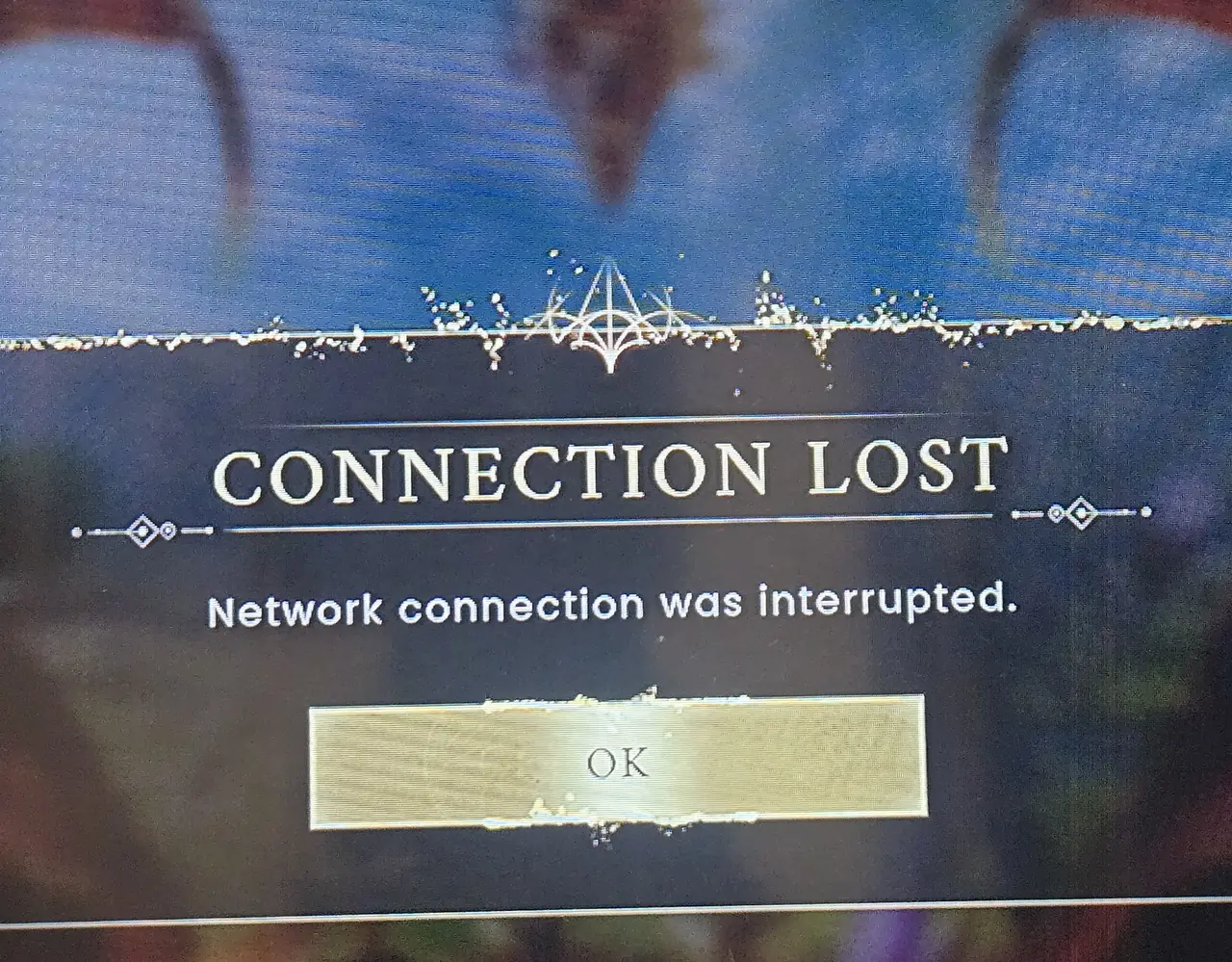
Note when it appeared, then use the matching check. Do not delete the world.
See whether it hit one player or everyone
Everyone at once, while they were already in the world, means the dedicated
server restarted or stopped. On berrybyte, confirm Overview still shows the
server running and the log reached START SESSION - Success, then have one
player rejoin. One player only means that client. Have a second player try
before you change the server.
Match the client and server versions
After a patch the store updates the game before the dedicated server. A client on the new build can find the world and then get this dialog as soon as the join starts. Follow Match the client and server versions and retry with one player.
Open the UDP game port when the world is listed but the join dies
Jagex's dedicated-server guide describes this failure: the world appears in other players' lists but will not join when UDP forwarding failed. The Public tab is the listing. The game session is one UDP port. Follow Check the single UDP game port.
On berrybyte that allocated UDP port is already open. A hosted world that is listed and still drops players should go back to the version check, not a firewall rule. On a self-hosted machine, test Direct with the IP and port. The game rejects a hostname there.
The same dialog in a single-player world is not the dedicated server. Update the game and retry. Jagex has shipped fixes for Epic Online Services disconnects that kicked players out of offline worlds. Do not change the Owner ID or ports for that case.
These are different problems, and this dialog is not how they look:
- The world never appears in Public. That is the Owner ID or the world name — sections 2 and 3.
- Dragonwilds asks for a password. That is WorldPassword — section 5.
- A Steam invite fails. Invites to a dedicated server do not connect. Search the world name.
If none of the six fixes worked
Confirm the dedicated server reached a ready state before testing
again (START SESSION - Success in the startup log on berrybyte).
Then check the leftover causes:
- Wait a few seconds after searching Worlds → Public.
- Try Direct with the current host:port only as a local-network fallback.
- Read
RSDragonwilds/Saved/Logs. - Steam invitations still will not connect; keep using the world name.
- Check console parental and privacy controls permit online and cross-network play.
- CONNECTION LOST / Network connection was interrupted means the session dropped after the client found the world. Use the section above.
Moving an existing Xbox / Game Pass world? See the WGS-to-SAV migration guide and free save converter.
The complete join flow for PS5, Switch 2, Xbox, and PC.
Set up the Owner IDThe server will not advertise until My Player ID is pasted and the process is restarted.
Dragonwilds server setup and 1.0 guides4-versus-6 cap, hosting notes, and the rest of the 1.0 pages.
RuneScape: Dragonwilds hostingOwner ID and world name on Overview, automatic updates, one UDP port, support.
Frequently asked questions
Why can't I connect to a Dragonwilds 1.0 server?
Check the game version first. After a patch the store updates the client before the dedicated server. If the versions match, confirm Owner ID, search the exact world name on Worlds → Public, check the UDP game port, share or clear WorldPassword, and remove incompatible mods — in that order.
Why is my Dragonwilds server missing from the Public list?
Search the exact Default World Name, case sensitive — not the Server Name. The server also will not advertise without a valid OwnerId (the host's 32-character Player ID). Confirm the world finished starting, then wait a few seconds after you search.
What port does a Dragonwilds dedicated server use?
One UDP game port. The documented default is 7777. Jagex does not document a separate query port or require game-port + 1. Players still need the configured UDP game port reachable to join, and berrybyte allocates that port for you.
What is an OwnerId and why does a wrong one block joins?
OwnerId is the host's 32-character in-game Player ID, copied from Settings (My Player ID). The dedicated server will not start without it. A blank, truncated, or mistyped ID means the world never advertises. Joining players do not enter this value.
Why does Dragonwilds ask for a password when I join?
WorldPassword is optional. If the host set one, every player must enter that exact string. It is not the Admin Password. If nobody shared a password and the prompt still appears, the host has one configured and needs to send it or clear it and restart.
What does CONNECTION LOST and "Network connection was interrupted" mean in Dragonwilds?
The client reached a session and then lost it. On a dedicated server that is usually a version mismatch after a patch, the UDP game port not being reachable, or the server restarting. If the same dialog appears in a single-player world, update the game — the dedicated server is not the cause.