How to set up a Dragonwilds 1.0 dedicated server
Set up a Dragonwilds 1.0 dedicated server for 6 players. Copy your Player ID first, then rent one from $9.95/mo or self-host free with SteamCMD app 4019830.
Yes, RuneScape: Dragonwilds 1.0 has official dedicated servers. Jagex documents up to 6 players on one, and the server will not start without your Owner ID (your in-game Player ID). Rent one with Dragonwilds server hosting from $9.95 a month. Or self-host it free with anonymous SteamCMD app 4019830 on a 64-bit Windows or Linux machine that stays on.
In-game co-op stops at 4, so a group of five or six needs a dedicated server. It also keeps the world online when the owner logs off.
Jagex does not list macOS or consoles as server platforms. PC, PS5, Xbox Series X|S, and Switch 2 players can still join a server that runs on Windows or Linux.
To get the Owner ID: launch the game → Settings → scroll to the bottom → copy Player ID → paste it → then start. On berrybyte that paste target is a required Owner ID field.
The Owner ID
You need a running copy of RuneScape: Dragonwilds for this. The dedicated server tool cannot mint a Player ID.
Launch the game
Start RuneScape: Dragonwilds on PC. Open the game client, not the dedicated-server tool.
Open Settings
From the main menu, open Settings.
Scroll to the bottom
Scroll to the bottom of the Settings menu. My Player ID sits there (bottom-left, with a copy control).
Copy Player ID
Use the copy button next to My Player ID. The value is 32 letters and numbers. That clipboard string is the Owner ID.
Paste into DedicatedServer.ini
On berrybyte, paste it into the Owner ID field. The panel writes
OwnerId for you on the next boot. When you self-host, paste it as
OwnerId= under [/Script/Dominion.DedicatedServerSettings] in
DedicatedServer.ini. Paths differ by platform; see
DedicatedServer.ini below.
Then start the server
Only after OwnerId is set does the process stay up and advertise. On
berrybyte press Start. Self-host with -log -NewConsole -Port=7777
and wait for the session to come online.
Editing DedicatedServer.ini while the server is running discards those
changes. Stop first, then edit, then start. On berrybyte, save the panel
fields and restart. Do not hot-edit the file in Files on a running
server.
Set up on berrybyte
Checkout installs Steam app 4019830, writes DedicatedServer.ini from
your panel fields on each boot, and updates the build when Auto Update is
on. Owner ID is required before start; names, admin password, optional
world password and the player cap are managed settings.
Order the server
Open Dragonwilds server hosting, pick 4, 6, 12 or 32 slots and the region closest to your group, and check out. We recommend 6 slots, because 6 players is what Jagex documents for a dedicated server. The 12- and 32-slot plans are experimental: performance above six depends on the world and activity. Checkout details live in Create your first server.
Wait for the install
My Servers shows Setting up while the server files download. It opens on its own when that finishes.
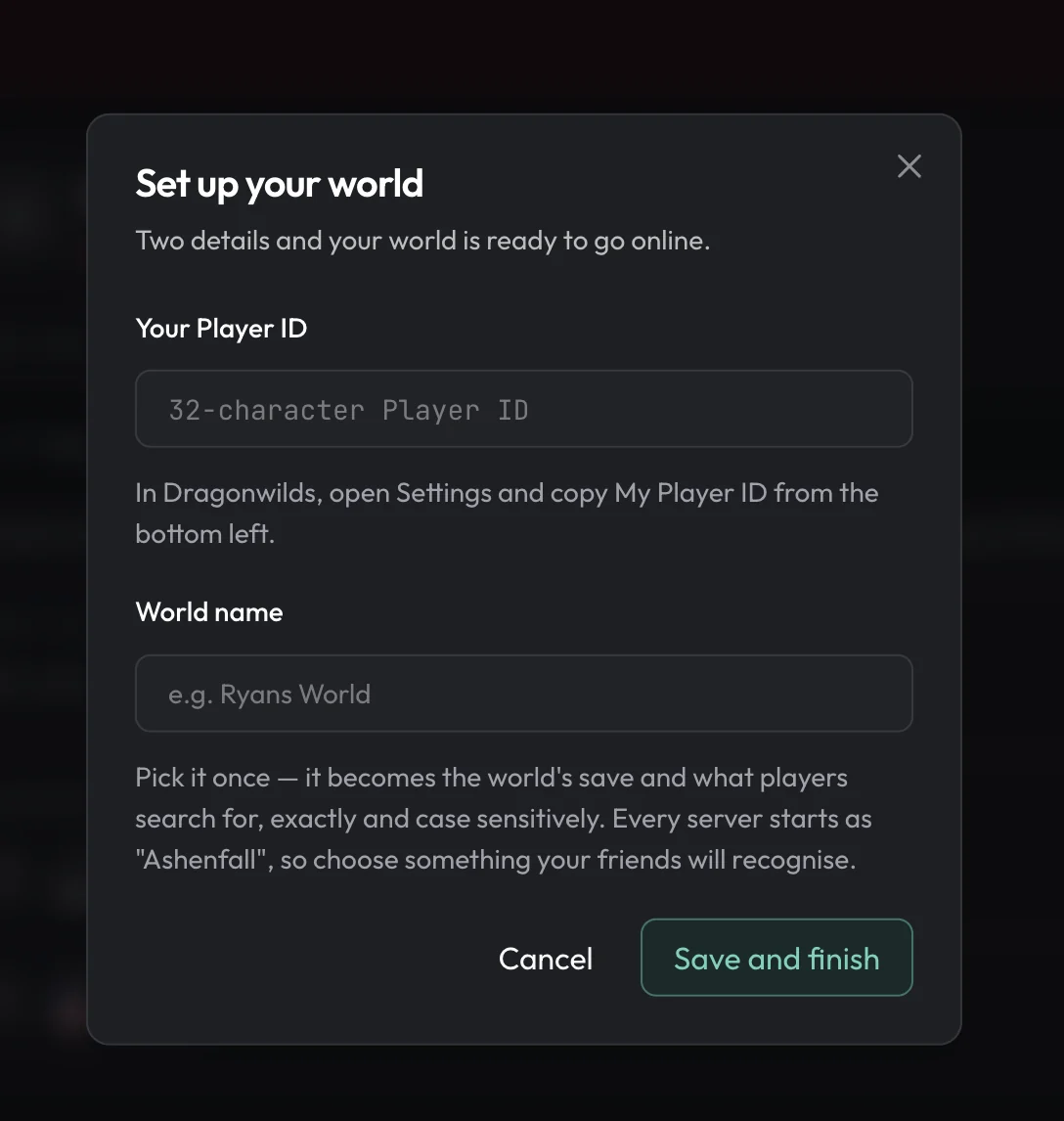
Paste Owner ID
Finish the Owner ID flow above, then paste My Player ID into
Your Player ID on the Set up your world dialog. The panel will
not start the server while this field is empty. You do not type it into
DedicatedServer.ini by hand.
Set the managed names and passwords
World Name is what friends type in Worlds → Public. It must match exactly, is case sensitive, and has 16 characters or fewer. Server Name shows as Created By in that list.
Then set an Admin Password and an optional World Password. Changing World Name after the first save is not a rename. It points the server at a different world. Keep the admin password different from the world password, or everyone who joins can open Pause → Settings → Server Management.
Start
Press Start. Leave Auto Update on so a patch does not leave clients unable to see the world. Share the World Name, not a Steam invite. Those invites do not currently connect as intended.
berrybyte writes OwnerId, ServerName, DefaultWorldName,
AdminPassword and WorldPassword into
RSDragonwilds/Saved/Config/LinuxServer/DedicatedServer.ini immediately
before launch. The player cap is applied on the command line. You still
need to supply the Owner ID; nothing else about that file is yours to
maintain.
Self-host with SteamCMD
The dedicated server is Steam app 4019830. It is free and downloads with an anonymous login. It runs on 64-bit Windows and Linux only.
Jagex's RAM figure is 2 GB base + 1 GB per player (8 GB for six). The default listen port is UDP 7777.
Install the server files
Jagex's Windows sample omits validate. The Linux wiki and berrybyte
installs include it. Anonymous login is the same on both.
steamcmd +force_install_dir C:\MyInstallFolder +login anonymous +app_update 4019830 validate +quit./steamcmd.sh +force_install_dir /path/to/dragonwilds +login anonymous +app_update 4019830 validate +quitKnow the binary paths
Windows: Jagex documents running RSDragonwilds.exe from the
dedicated-server product folder. From Steam you can also set launch
options on RuneScape: Dragonwilds Dedicated Server → Properties.
Linux: the official Linux wiki starts
RSDragonwildsServer.sh in the install root. The shipping binary that
script launches (and that berrybyte execs) is
RSDragonwilds/Binaries/Linux/RSDragonwildsServer-Linux-Shipping.
Create or edit DedicatedServer.ini
Stop the server if it is already running. If the file does not exist, create it at the platform path below and add the documented section and keys. This keeps Owner ID in place before the first successful boot.
Fill the Owner ID from the flow above, plus the other mandatory keys.
RSDragonwilds/Saved/Config/LinuxServer/DedicatedServer.iniRSDragonwilds/Saved/Config/WindowsServer/DedicatedServer.iniLaunch with console and port flags
RSDragonwilds.exe -log -NewConsole -Port=7777./RSDragonwildsServer.sh -log -NewConsole -Port=7777Jagex recommends -log and -NewConsole, so the console shows what
the server is doing. -Port=7777 is the documented default. Change
the number if you run a second instance (7778, …). Forward that UDP
port on the host firewall and every router in front of it.
On Linux, a host CPU that does not expose SSE4.2 will fail at launch with an illegal-instruction crash. AVX is not required.
DedicatedServer.ini
Authoritative keys live in one Unreal section. Display names from Jagex's how-to map to these identifiers (Linux wiki + the berrybyte recipe):
[/Script/Dominion.DedicatedServerSettings]
OwnerId=
ServerName=
DefaultWorldName=
AdminPassword=
WorldPassword=| Key | Jagex name | Required | What it does |
|---|---|---|---|
OwnerId | Owner ID | Yes | Your 32-character My Player ID. The server will not start without it. |
ServerName | Server Name | Yes | Name of the server, independent of which world it runs. In the Public list this is the Created By label. Keep it to 16 characters. |
DefaultWorldName | Default World Name | Yes | Name of the world created on first start, and the exact, case-sensitive string players search for. Keep it to 16 characters. |
AdminPassword | Admin password | Yes | Anyone who enters this under Pause → Settings → Server Management becomes an admin until you change it. |
WorldPassword | World password | No | Optional join password. Leave empty for an open world. Overrides a password stored on the world save. |
The running process also writes its own values (for example a ServerGuid
and admin history) into this file. Do not invent extra keys, and do not
overwrite those generated lines unless you know you need to.
Path casing
These are easy to mix up because Jagex's own pages do not all agree.
| Platform | Path to use |
|---|---|
| Linux (current builds, official Linux wiki, berrybyte) | RSDragonwilds/Saved/Config/LinuxServer/DedicatedServer.ini |
| Linux (Jagex how-to wording) | RSDragonwilds/Saved/Config/Linux/DedicatedServer.ini |
| Windows (Jagex how-to) | RSDragonwilds/Saved/Config/WindowsServer/DedicatedServer.ini |
Use LinuxServer on a current Linux install. Use WindowsServer on
Windows. The how-to's Config/Linux folder is the older documented name; if
that directory is empty, look in LinuxServer.
World saves on the dedicated server are under RSDragonwilds/Saved/Savegames.
A local Windows client copy is documented at
%LOCALAPPDATA%\RSDragonwilds\Saved\SaveGames. Server logs are
RSDragonwilds/Saved/Logs/RSDragonwilds.log. After a patch, the server
version is at the top of that log; the client version is in the top-left of
the game.
Ports and updates
| Port | Protocol | Purpose |
|---|---|---|
| 7777 | UDP | Default game port |
| 7778 | UDP | Next instance on the same machine, if you run more than one |
Forward the UDP game port you actually launched with. If the world appears in the Public list but nobody can join, port forwarding failed somewhere between the host and the player.
Keep the dedicated server on the same build as the game client. After a
hotfix, update with the same anonymous +app_update 4019830 validate line
and restart. On berrybyte, restarting with Auto Update on is enough.
Restart after every hotfix, even a small one. Jagex said the 1.0.0.8 fix only applied to dedicated servers after a restart.
On October 15, 2026, Jagex listed a 1.0.1 known issue: Ranged Special Attacks can crash a dedicated server when they hit some targets. Jagex said a hotfix was on the way. If your server crashes in ranged fights, update and restart before you change anything else.
Check the 1.0.1 known issues post on Steam for the current status.
Next steps
4- to 32-slot plans with Owner ID, names and updates handled in the panel.
Create your first serverCheckout, regions, billing, and what Setting up means on My Servers.
Start, stop and restartStop before any DedicatedServer.ini or panel-field change, then start.
BackupsSnapshot the world under RSDragonwilds/Saved/Savegames before you move a .sav.
See Jagex's dedicated-server how-to and the Dedicated Servers wiki if you want the upstream file paths.
Frequently asked questions
Does RuneScape Dragonwilds have dedicated servers?
Yes. Jagex publishes an official, free dedicated server tool (Steam app 4019830), and it works with Dragonwilds 1.0. A dedicated server holds up to 6 players and keeps the world online when the owner logs off. You can run it yourself or rent one.
How much does a Dragonwilds dedicated server cost?
The server tool is free, so self-hosting costs nothing beyond a 64-bit Windows or Linux machine that stays on. Renting from berrybyte starts at $9.95 a month. We recommend the 6-slot plan, because 6 players is what Jagex documents for a dedicated server.
Can I run a Dragonwilds dedicated server on Linux?
Yes. Jagex says the dedicated server runs on 64-bit Windows and 64-bit Linux. On Linux, install app 4019830 with an anonymous SteamCMD login. Jagex does not list macOS or consoles as server platforms, but console players can still join a server that runs on Windows or Linux.
What is an Owner ID and do I have to set it?
Yes. Owner ID is your in-game Player ID, a 32-character value from the bottom of Settings. The dedicated server will not start without it. On berrybyte it is a required panel field. When you self-host, it is the OwnerId key in DedicatedServer.ini.
How many players can join a Dragonwilds server?
In-game co-op holds 4. A dedicated server holds 6. Jagex publishes RAM as 2 GB base plus 1 GB per player, so 8 GB for a full six. If your group is five or six people, a dedicated server is the only way to play together.
Do I need to own Dragonwilds to run a dedicated server?
The dedicated server tool is free Steam app 4019830 and installs with an anonymous SteamCMD login, so you do not need to log into Steam to download it. The Owner ID still comes from a running copy of the game. Launch Dragonwilds, open Settings, and copy My Player ID.
What happens if I edit DedicatedServer.ini while the server is running?
Jagex lists this as a known issue. Changes made to DedicatedServer.ini while the process is running are discarded. Stop the server first, edit the file or panel fields, then start it again.
What ports does a Dragonwilds dedicated server use?
The default game port is UDP 7777. A second instance on the same machine uses 7778, and so on. Forward that UDP port on every firewall and router between the host and the internet. There is no documented Steam query port.
How do I find my dedicated server in game?
Open Worlds, go to the Public tab, and search the exact world name. The search is case sensitive and matches the world name, not the server name. If the server does not appear, confirm OwnerId and the other mandatory keys are set, and that the server and client versions match.
Where is DedicatedServer.ini on Windows and Linux?
On Linux the running server writes RSDragonwilds/Saved/Config/LinuxServer/DedicatedServer.ini. On Windows, create or edit RSDragonwilds/Saved/Config/WindowsServer/DedicatedServer.ini. Jagex's how-to also writes the Linux folder as Config/Linux. That is the older documented name, and current Linux builds use LinuxServer.
Can I change the world name after the server has created a save?
DefaultWorldName names the save the server creates on first start. Changing it later is not a rename. It points the server at a different world. Pick the name before the first successful boot, keep it to 16 characters, and search that exact string in the Public tab.
Why doesn't a Steam invite connect my friends?
Steam invites to a dedicated server do not currently connect as intended. Have them search the exact world name on the Public tab instead.