How to authenticate a Hytale server (Hytale Link)
Authenticate a Hytale server so players can join. Press Authenticate on berrybyte or run /auth login device in Console, approve the device code with your Hytale account, and wait for Authentication successful.
A Hytale server can boot without authentication, but it can't accept
players until you link it to a Hytale account. On berrybyte, press
Authenticate and approve the code. When self-hosting, run
/auth login device in the console.
Why Hytale servers need authentication
Hypixel requires authentication so the server can communicate with Hytale's service APIs and to counter abuse. Once it succeeds, the server can accept player connections.
There's a limit of 500 servers per Hytale game license. Hypixel set it to prevent early abuse, and its support team handles requests for more.
Authenticate on berrybyte
Start the server
Open your server in the dashboard. Start it and wait for Hytale server authentication required.
Request a code
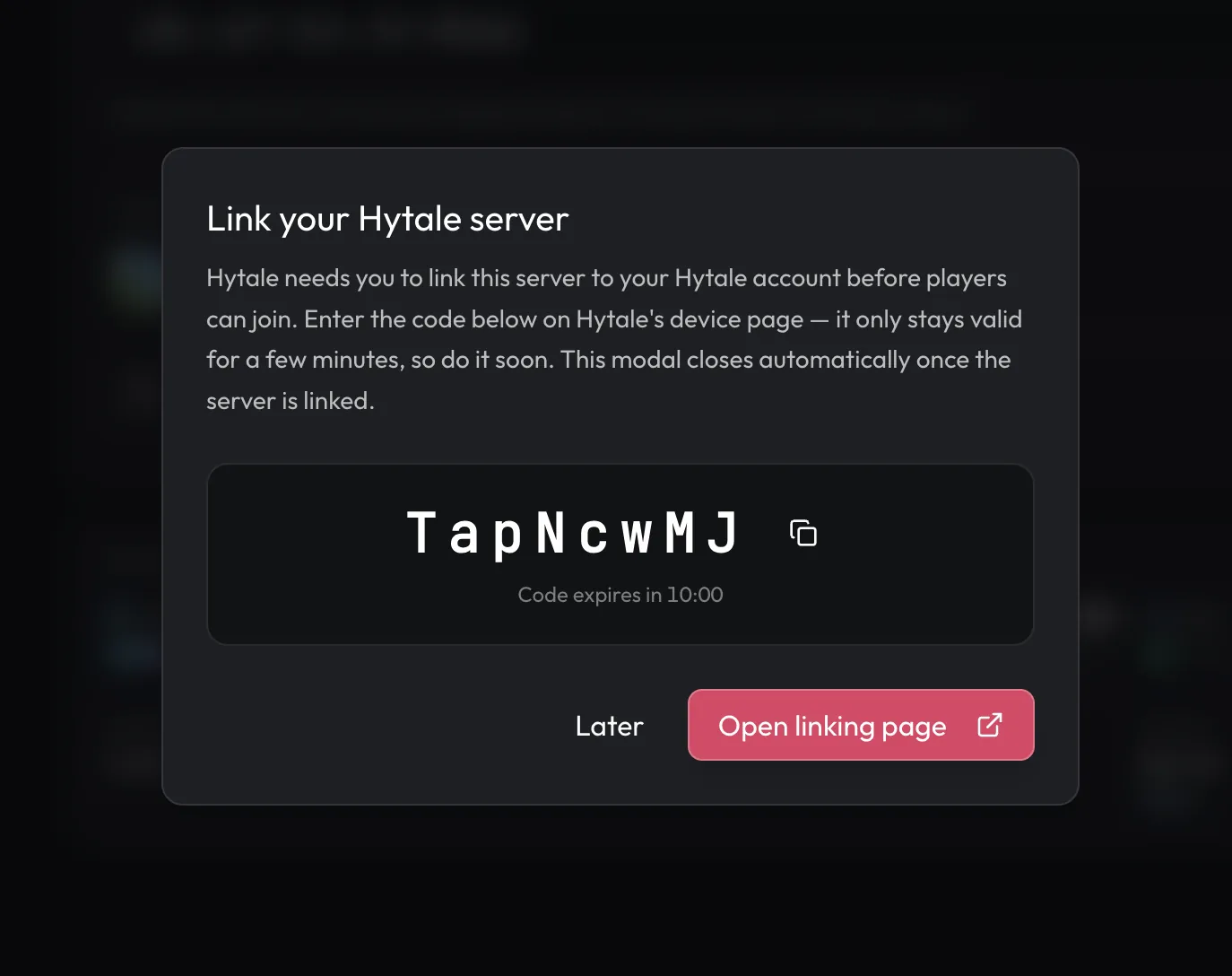
Press Authenticate. The dashboard sends /auth login device and opens the linking prompt.
Approve the request
Use Open linking page. Sign in to the Hytale account that should own the server, then approve the current code exactly as shown.
Confirm success
Watch for Authentication successful. The prompt closes on its own.
Join the server to check it works.

Use Console instead
With the server running, send:
/auth login deviceOpen the URL printed in Console (https://accounts.hytale.com/device), enter
the code, and wait for Authentication successful. Use /auth status to
check the current login. Hypixel documents these commands in its
authentication guide.
After a restart or update
How the login is stored decides whether it survives a stop. Hypixel documents
in-memory and encrypted-on-disk storage, and /auth persistence shows or sets
which one the server uses.
Restart once and test joining before inviting the group. If the
authentication alert returns or Console prints No server tokens configured,
request a new login. The same goes after an update: if Hytale asks for
authentication again, complete Hytale Link again.
Don't copy authentication files from another server or include them in a support message. They're credentials for your account.
Common problems
- No code: confirm the server process is running, then send the command in Console.
- Expired code: request a new one. An old screenshot or link won't work.
- Approval fails: check capitalization and which account you're signed into.
- Login succeeds but joining fails: follow connection troubleshooting.
Authentication is what lets players join. Server Discovery is a separate, optional public listing.
Related guides
Frequently asked questions
Why does a Hytale server need authentication?
Hypixel requires it so the server can communicate with Hytale's service APIs and to counter abuse. The server can start without it, but it can't accept players until authentication succeeds.
Do I need to re-authenticate a Hytale server after an update?
Only if Hytale asks for it. After the update finishes, check the dashboard and Console. If the authentication alert appears or Console prints No server tokens configured, complete Hytale Link again before players join.
Can a Hytale server start before it is authenticated?
Yes. It can boot and warn No server tokens configured, but players can't join until authentication succeeds.
What should I do when a Hytale device code expires?
Request a fresh code with Authenticate or /auth login device. Use the new link and code exactly as printed, including capitalization.
How many servers can one Hytale license authenticate?
Hypixel's Server Manual sets a limit of 500 servers per Hytale game license to prevent abuse. If you need more, Hypixel asks you to contact its support team.