Hytale Chapter I: Can't connect to server — every fix
Can't join a Hytale server after Chapter I? Match the client and server versions first, then check Chapter I mods, Hytale Link, the full address and port, UDP 5520 when self-hosting, and password or whitelist. Covers protocol mismatches and servers that won't start.
If you can't join a Hytale server since Chapter I: Out of the Breach (released October 12, 2026), work through these checks in order. Chapter I changed the protocol version, so the most common problem is a player and server on different builds. Don't delete or restore your world first.
After the version, the usual causes are mods without a Chapter I build, a server that isn't authenticated, an address missing its port, or blocked UDP traffic. Find your symptom below, then fix it and retry with one player before inviting everyone.
Find your symptom
| What you see | Likely cause | Fix |
|---|---|---|
| Could join before Chapter I, can't now | Game and server are on different builds | Match the version |
| Protocol or version mismatch | Game and server are on different versions or patchlines | Match the version |
| Server won't start after the Chapter I update | A plugin built for the old version | Check mods |
Console shows No server tokens configured | Server isn't authenticated | Complete Hytale Link |
| Connection times out | Wrong or missing port, server still loading, or UDP blocked | Check the address, then UDP access |
| Password or whitelist rejection | Wrong password, or the account isn't approved | Check access |
| Stopped working after a mod change or update | A mod doesn't support the current build | Check mods |
| World won't load after rolling the server back | The world was already upgraded by Chapter I | Rolling back |
| Can't join a friend's world (not a server) | Friend-hosted session, not a dedicated server | Friend-hosted worlds |
| Server isn't in the server list | No Server Discovery listing, or the listing went offline | Not showing up |
| Only fails when hosting at home | Firewall, router, or NAT | Hosting at home |
| Self-hosted server exits with code 11 | Server data is inside the launcher's install folder | Move the server |
1. Match the game version
Your game and the server must run the exact same protocol version. Chapter I changed it, so a Chapter I player can't join a server on the old build, and a player who hasn't updated can't join a Chapter I server.
Back up before your server's first Chapter I start. Existing worlds upgrade the first time Chapter I loads them, and an upgraded world can't be opened by an older server.
Update every player's game
Close Hytale completely, open the launcher, and install the update. Check that the
launcher is on the same patchline as the server (release for the normal game).
Update the server
On berrybyte, stop the server, open Settings → Game Settings, turn on Auto
Update, and check that Patchline is release. Start the server, and Auto Update
installs the current build. Self-hosting? Use the built-in updater in the
Chapter I server update guide.
Wait for startup, then test one player
Watch Console until the download and world loading finish, then have one player join with Direct Connect. If the server stops during startup, go to mods before retrying.
Players on pre-release can't join a release server, and the other way
around. See update your server for every
patch after Chapter I.
2. Complete Hytale Link
If Console prints No server tokens configured, the server is running but
players can't join yet. It has to be authenticated first.
Press Authenticate in the dashboard, approve the current device code, and
wait for Authentication successful. If the code expires or the alert comes
back after a restart, follow authentication.
3. Use the full address and port
Copy Server address from Overview, including the port after the colon. In Hytale, open Servers → Direct Connect and paste it into Connection Address.
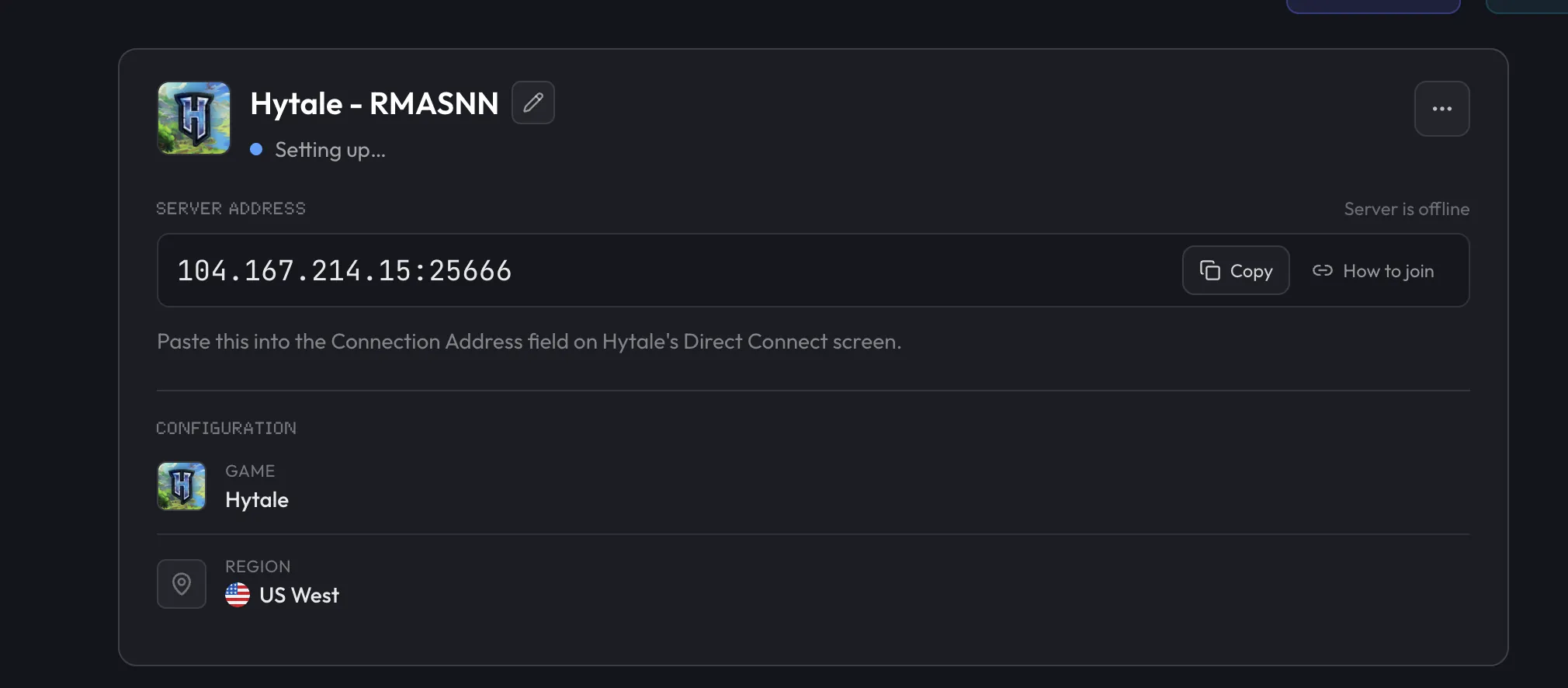
Keep the port even if you connect with a domain name. Hytale doesn't support SRV records yet, so DNS can't fill in the port for you.
Join via Code is for friend-hosted worlds. Dedicated servers use Direct Connect, and they don't need a public Discovery listing to accept joins.
4. Check UDP access
Hytale uses QUIC over UDP, not TCP. On berrybyte, the port is allocated for you, so there's nothing to forward. Use the port shown in Overview.
On a self-hosted server, the UDP port must be allowed through the firewall and forwarded on the router. See hosting at home below.
5. Check password and whitelist
The owner should stop the server and read Password in the root
config.json through Files, then send the exact string privately. See
settings.
If a whitelist is on, check that the joining account is approved. Fix the account or password rather than turning access controls off.
6. Check mods and the startup log
A matching game build doesn't make every mod compatible. Chapter I removed or replaced a large part of the server plugin API, so plugins built before it need a new release from their author. Until then they can stop the server at startup, which looks like a connection problem to players.
Find the first mod error
Open Console and scroll to the first error during startup. Note the mod or plugin it names.
Install its Chapter I build, or test without it
Upload the author's Chapter I build to mods/. If there isn't one yet, test the server
without that mod on a copy of your world. Removing a mod that adds blocks or items can
affect saved builds, so don't remove it from your main world first.
Restart and test one player
Start the server again and repeat until it reaches a running state. See the mod guide for the full process.
A self-hosted server that exits with code 11 isn't a mod problem. Chapter I refuses to start when the server's data is inside the launcher's install folder. Move the server to its own folder.
Still blocked? Open a support ticket with the server linked, the error text, the patchline, and the latest startup log.
Rolled back and the world won't load
Chapter I upgrades a world the first time it loads it, and an older server can't open the upgraded world. Moving the server back to the old build doesn't undo that. Rolling back needs both the old server files and a world backup taken before the update.
Stop the server and don't keep restarting it. On berrybyte, open a support ticket with the time of your pre-update backup and the startup log, and we'll work out the safest way back with you.
Joining a friend's world instead?
Worlds hosted from a friend's game use Online Play and invite codes, not a server address. Chapter I made that screen show whether friends can join and what to do if they can't. Its Copy Network Report button copies a diagnostic without your address, which helps when you ask for help. Chapter I also fixed rejoining a friend's world after a disconnect, so update both games before you troubleshoot further.
A dedicated server keeps the world online even when the host's PC is off. Friends join it by address with Direct Connect.
Not showing up in the server list?
A dedicated server only appears in the in-game server list if you set up a Server Discovery listing and link it. Without one, players join by address with Direct Connect, which works fine for private groups.
If you do have a listing, it disappears when the server stops sending heartbeats for more than two minutes. Check the listing status in your Hytale account and the Console output from the link command.
Hosting at home?
A server on your own PC has a few extra places where connections break. Check these in order:
- Use UDP, not TCP. Hytale only uses QUIC over UDP. A TCP-only rule or forward does nothing.
- Check the bind address. The server listens on
0.0.0.0:5520by default, meaning every network interface on port 5520. If you changed--bind, use that port everywhere below. Binding to127.0.0.1only accepts connections from the same machine. - Allow the port in the firewall. For example,
sudo ufw allow 5520/udpon Linux with ufw. The port forwarding guide has the Windows and iptables commands. - Forward UDP 5520 on your router to the server's local IP address. TCP forwarding isn't required.
- Share your public IP and port. Friends enter it in Direct Connect. Test with someone outside your home network, since a test from inside it doesn't prove the forward works.
- Check for symmetric NAT. Hypixel notes that symmetric NAT can cause connection issues even with a correct forward, and suggests a VPS or dedicated server instead.
The full walkthrough, including router steps and carrier-grade NAT, is in how to port forward a Hytale server.
If your network won't cooperate, a hosted server skips all of this. The address and port come ready to share.
Related guides
Frequently asked questions
Why can't I join my Hytale server after Chapter I?
Almost always a version mismatch. Chapter I changed Hytale's protocol version, so a player on Chapter I can't join a server still on the old build, and the other way around. Update the game, restart the server with Auto Update on the release patchline, then check that every mod has a Chapter I build.
Why won't my Hytale server start after the Chapter I update?
Usually a mod. Chapter I removed or replaced a large part of the server plugin API, so plugins built for the old version can fail at startup. Find the first mod error in Console and remove that mod or install its Chapter I build. A self-hosted server that exits with code 11 has its data inside the launcher's install folder.
Why can't my friends join my Hytale server?
It's usually a version mismatch, a server that hasn't finished Hytale Link, a wrong address or missing port, or a password or whitelist blocking them. Have one friend paste the full host and port into Servers → Direct Connect, then work through those checks in order.
Why does Hytale reject my connection with a protocol or version mismatch?
Hytale clients and servers must run the exact same protocol version, and the server rejects connections that don't match. Update the game and the server on the same patchline, release or pre-release, then try again.
Does a Hytale server need TCP or UDP?
UDP. Hytale uses the QUIC protocol over UDP, on port 5520 by default. Allow and forward the UDP port. TCP forwarding isn't required and won't let players connect on its own.
Why can't friends join my home-hosted Hytale server?
Check that the server's firewall allows inbound UDP on its port and that your router forwards that UDP port to the server's local IP address. Friends need your public IP plus the port. Symmetric NAT can still block connections, and Hypixel suggests a VPS or dedicated server in that case.
Why isn't my Hytale server showing up in the server list?
Dedicated servers only appear in Server Discovery if you create a listing and link it, and a listing disappears when the server stops sending heartbeats for more than two minutes. Friends don't need a listing. They can join any running, authenticated server with Direct Connect.
Where do I change a Hytale join password?
Stop the server, edit Password in the root config.json through Files, save, and start it again. The join password isn't a separate Game Settings option.