How to upload a Hytale world to a server (singleplayer or another host)
Upload a singleplayer Hytale world or move one from another host. Copy the whole universe folder from your save, upload it to the server root, set Defaults.World in config.json, and check progress before inviting friends. berrybyte helps for free.
To upload a Hytale world to a server, copy the complete universe/ folder
from your save or old server to the server root, then set Defaults.World in
the root config.json to the world's folder name. Keep the original copy
until you've joined the server and checked your progress.
Rather not do it yourself? berrybyte's migration help is free. Open a support ticket and the team will help move your world from singleplayer or another host.
Chapter 1 released on October 12, 2026, and existing worlds upgrade themselves the first time they load on it. A world saved by Chapter 1 can't be opened on an older server, so back up before your server's first Chapter 1 start and finish any migration on the version the world was saved with. See the Chapter 1 server update guide.
Find your world files
For a singleplayer world, close the game first so the save is complete. In
the launcher, open Settings → User Data, then Saves/<your save>/.
Hypixel's file-location guide
documents this location. The launcher button is safer than browsing by hand,
because it finds the right folder for custom installs and other patchlines.
| Source | Copy |
|---|---|
| Singleplayer world | universe/ inside the chosen save, plus its required mods |
| Another dedicated server | Root universe/, required mods/, and copies of its config and permission files |
The Server Manual
identifies universe/ as the world and player save directory. Copy the
whole folder, not just one world inside it, so player data comes along.
Upload the world to berrybyte
Back up both copies
Save and close the source world. Stop the destination server and create a backup of its current files, so you can undo the upload if something goes wrong.
Match the build and mods
Use the same patchline as the source for the first start. Install compatible copies of the required mods. Change versions only after the imported world works.
Transfer universe
Use SFTP for the folder. Move the
destination's existing universe/ outside the active path, then upload the source
universe/ at the server root. The result should be universe/worlds/<world name>/, not
universe/universe/worlds/.
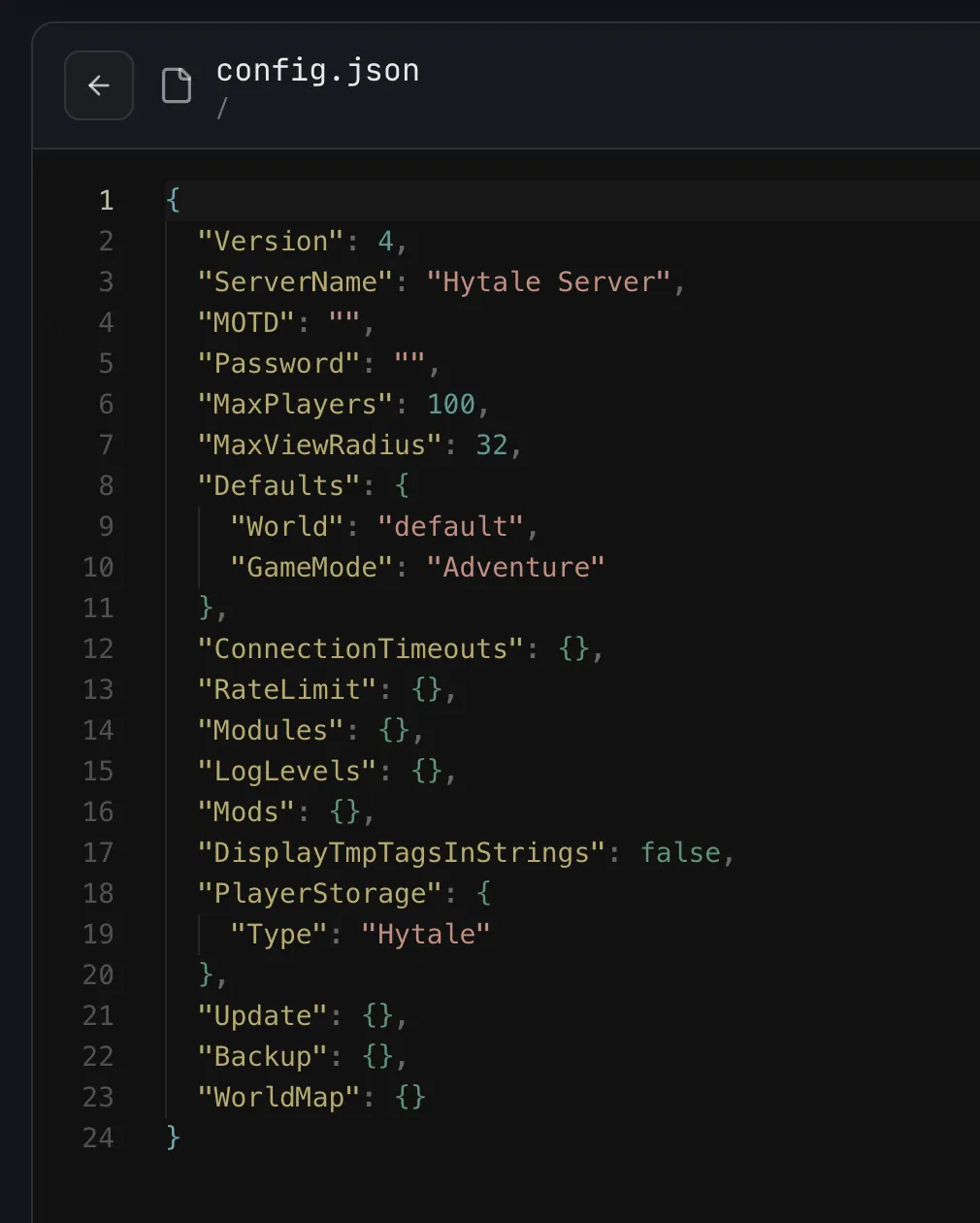
Select the world
Open the root config.json in Files. Set Defaults.World to the folder name under
universe/worlds/. Keep the destination's other settings unless you mean to change them.
Start and check
Start the server, complete authentication if asked, and join. Check a known build, your inventory, spawn, and another player's progress. Restart and check again before the group plays, which confirms the world saves correctly on the new server.
Config and access
Review the source copies of permissions.json, whitelist.json, and
bans.json before transferring them. They control who can join and who has
admin rights on the destination.
Keep authentication separate. Don't copy auth tokens or credential files from another server. Complete Hytale Link on the destination instead.
If a fresh world loads instead
Stop the server right away, before anyone builds in the new world. Then check:
- The folder nesting:
universe/worlds/<world name>/at the server root. - That
Defaults.Worldmatches the world folder name exactly. - Console for the first error, such as a missing mod.
Restore the destination backup if needed. The original source should still be untouched.
Related guides
Frequently asked questions
Can I move my singleplayer Hytale world to a server?
Yes. Close the game, copy the universe folder from your save, upload it to the server root, and set Defaults.World in the root config.json to the world's folder name. Install any mods the world needs before the first start.
Where are Hytale singleplayer worlds saved?
In the Hytale launcher, open Settings → User Data, then Saves and the folder for your save. The universe folder inside it is what you upload. Using the launcher button finds the right folder even with a custom install or a different patchline.
Which files do I need to move a Hytale world?
The complete universe folder, which holds worlds and player data, plus the mods and configuration the world needs. Copying only one world folder can leave player progress or dependencies behind.
Why did my uploaded Hytale world not load?
Check that universe sits at the server root, not nested inside another universe folder, and that Defaults.World in the root config.json matches the folder under universe/worlds. Then check the source build and required mods.
Does berrybyte charge to move a Hytale world?
No. Migration help is free. Open a support ticket and berrybyte will help move a compatible world from singleplayer or another host.