How to configure Hytale server settings (config.json)
Hytale server settings live in two files. The root config.json holds the name, password, player cap, and view distance. Each world's universe/worlds/<name>/config.json holds rules like PvP and fall damage. Stop the server before editing, or your changes may be overwritten.
Server-wide settings like the name, password, player cap, and view distance
are in the root config.json. World rules like PvP and fall damage are in
each world's universe/worlds/<name>/config.json. Stop the server before
you edit either one.
Hytale reads config files when it starts and writes them when in-game actions happen, for example when you grant permissions with a command. Edits made while the server is running are likely to be overwritten.
Change a setting
Stop and back up
Stop the server and wait until it's offline. Keep a backup so you can undo a bad edit.
Open the correct file
In Files, open the root config.json for server settings, or the world's config.json
under universe/worlds/<name>/ for world rules.
Edit, save, and start
Change the value, keep the JSON valid (quotes, commas, braces), and save. Start the server and join to check the result.
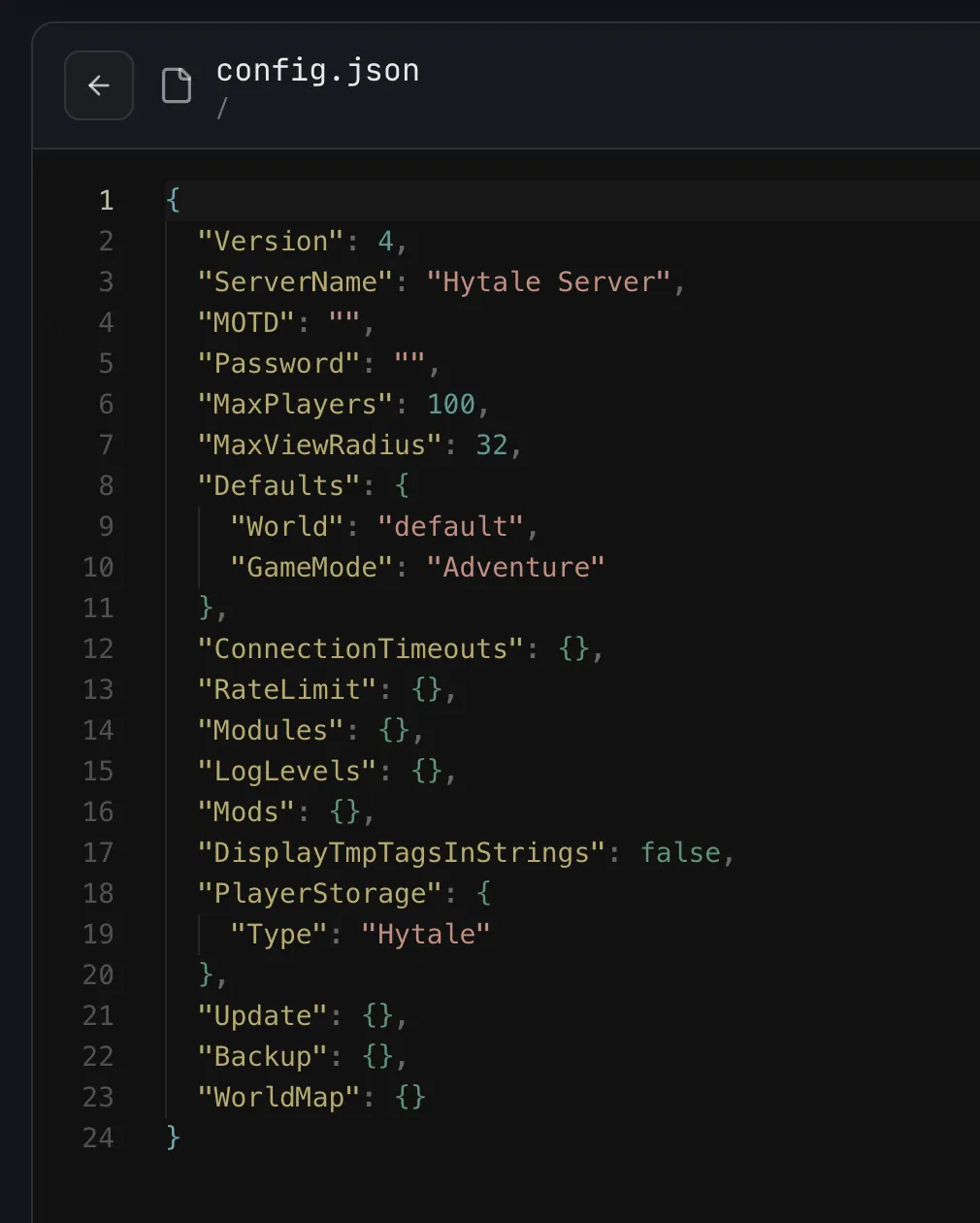
Server settings (root config.json)
| Key | What it controls |
|---|---|
ServerName | Server name |
MOTD | Message of the day |
Password | Join password. An empty string means no password |
MaxPlayers | Maximum players online at once |
MaxViewRadius | Maximum view distance, in chunks |
Defaults.World | Which folder under universe/worlds/ loads |
Defaults.GameMode | Default game mode for players joining |
This is an excerpt to merge into your existing file, not a full config:
{
  "ServerName": "Our World",
  "Password": "replace-with-a-private-password",
  "MaxPlayers": 8,
  "MaxViewRadius": 12
}
MaxPlayers only limits who can join. Raising it doesn't add RAM or CPU.
View distance
Hypixel recommends capping view distance at 12 chunks (384 blocks) for performance and gameplay. View distance is the main driver of RAM use, and the generated file can start higher (it's 32 in the screenshot above).
Chapter 1 caps view distance at 32 chunks. A MaxViewRadius outside 1 to 32 in
config.json no longer stops the server. It clamps the value in memory and logs
a warning, and the file keeps the original value. The /maxviewradius command
now rejects anything above 32 (it used to allow 512).
On Update 6 and later, you can also check or change the cap from Console with
/maxviewradius. For sizing, see
server requirements or the
RAM calculator. If players
already notice lag, start with fixing server lag.
Hardcore mode
Update 6 documents
Defaults.HardcoreMode with the values None, PerPlayer, and Global.
Check the keys your build generated before changing it on an existing world.
Per-world settings
Every world in universe/worlds/ has its own config.json. Rules for that
world go here, not in the root file. Useful fields include, for example:
| Field | What it controls | Example value |
|---|---|---|
IsPvpEnabled | Whether players can damage each other | false |
IsFallDamageEnabled | Whether fall damage applies | true |
IsGameTimePaused | Whether the in-game clock is paused | false |
IsSpawningNPC | Whether NPCs spawn | true |
IsSpawnMarkersEnabled | Whether spawn markers are enabled | true |
IsAllNPCFrozen | Whether all NPCs are frozen | false |
IsSavingPlayers | Whether player data is saved | true |
IsSavingChunks | Whether changes to the world's chunks are saved | true |
GameplayConfig | Which gameplay config the world uses | "Default" |
Seed | The world generation seed | 1767292261384 |
Example values come from the
Hytale Server Manual.
Keep IsSavingPlayers and IsSavingChunks on true for any world you want to
keep. Change one field at a time, and back up the world first.
World Events
Hypixel's Chapter I notes
say world events like Goblin Breach can be toggled in custom world settings or
with /worldevent enable [true|false]. The command toggles if you leave the
argument out. New Creative worlds default to off.
Startup settings vs config.json
Settings → Game Settings on berrybyte holds startup options such as
Auto Update and Patchline. They're separate from config.json. The
Update block inside config.json belongs to Hytale's built-in self-hosted
updater. For updates on berrybyte, follow
update your server.
If a change doesn't work
| Problem | Fix |
|---|---|
| Your edit reset itself | The server was still running. Stop it, edit again, then start |
| Server won't start after an edit | Restore your backup copy and check quotes, commas, and key names |
| PvP or another world rule didn't change | Edit the world's config.json, not the root file |
| A different world loads | Check Defaults.World matches the folder name under universe/worlds/ |
Related guides
Frequently asked questions
Where is the Hytale server password?
In the root config.json, under Password. Stop the server, edit the value in Files, save, and start it again. An empty string means the server has no password.
Why did my Hytale config edit disappear?
Hytale reads config files when it starts and writes them when in-game actions happen, such as granting permissions with a command. Edits made while the server is running are likely to be overwritten, so stop the server first.
How do I turn on PvP on a Hytale server?
Stop the server and set IsPvpEnabled to true in the world's own config file at universe/worlds/<name>/config.json. It's a per-world setting, so it doesn't go in the root config.json.
What view distance should a Hytale server use?
Hypixel recommends capping view distance at 12 chunks (384 blocks). Set MaxViewRadius in the root config.json. Chapter 1 clamps values outside 1 to 32 and logs a warning instead of stopping the server. View distance is the main driver of RAM use, so lower it first if the server runs short on memory.