Change your Palworld server version
Pinning a Palworld server to a specific version means matching a Steam manifest ID from steamdb.info's depot 2394012 history and fetching it with SteamCMD's download_depot. berrybyte builds this into Manual update / downgrade and Steam manifest ID in Settings → Game Settings.
Pinning a Palworld server to a specific version, instead of always taking the
latest, comes down to matching a Steam manifest ID to the exact build you
want. SteamDB tracks every build of the Palworld dedicated server depot
(2394012) with its manifest ID, and SteamCMD can fetch any of them directly.
berrybyte builds this into Manual update / downgrade and Steam manifest ID
in Game Settings so you don't have to run SteamCMD yourself.
Change your version on berrybyte
Stop the server
Open your server in the dashboard and stop it before changing the version.
Back up your server
Take a backup first, in case the version you're switching to doesn't play well with your current save. See server backups.
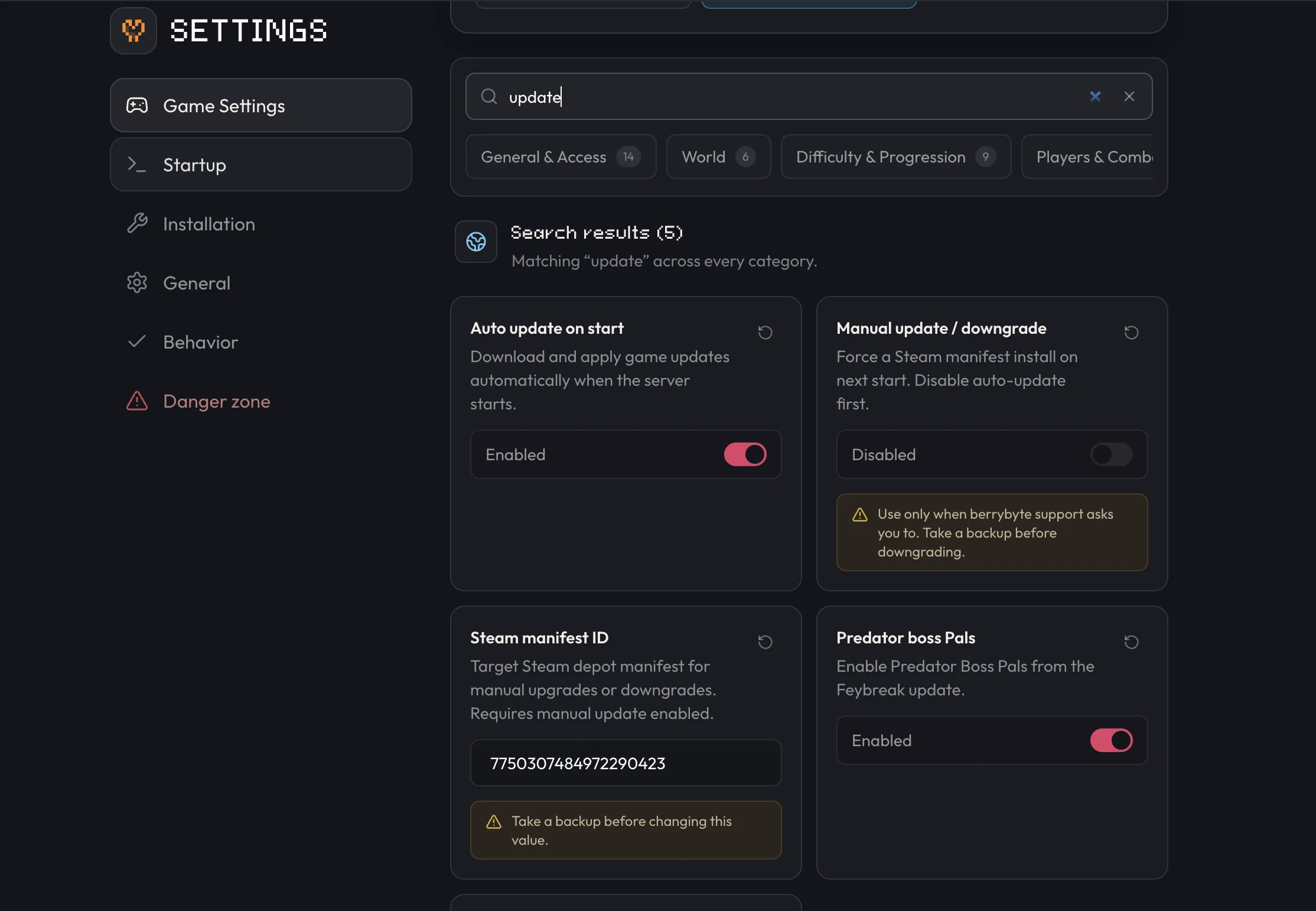
Open Settings → Game Settings
Go to Settings → Game Settings.
Turn off Auto update on start
Search for update, then set Auto update on start to Disabled.
Turn on Manual update / downgrade
Set Manual update / downgrade to Enabled, then enter the Steam manifest ID for the version you want. Find it on SteamDB's manifest history for depot 2394012.
Start the server
Start the server. It installs the exact build tied to the manifest ID you entered.
What a manifest ID is
Steam tracks every build of the Palworld dedicated server under one depot,
numbered 2394012. Each release Pocketpair pushes gets its own manifest ID
inside that depot. SteamDB keeps a full history of them with build timestamps,
so you can match a manifest ID to the release you remember, or to a version
mentioned in patch notes. For example, rolling back to Palworld v0.3.5 means
entering that version's manifest ID from the SteamDB page, not the version
number itself.
Manual update / downgrade locks your server to whatever Steam manifest ID you entered. It won't move again until you change the ID or turn Auto update on start back on, even after new Palworld patches ship.
Pin a self-hosted server to a specific version
SteamCMD can fetch a specific depot build directly with download_depot,
using the same manifest IDs from
SteamDB's depot 2394012 history.
Back up your server
Back up your save before changing versions, especially before rolling back to an older build.
Find the manifest ID
Look up the version you want on SteamDB's manifest history for depot 2394012 and copy its manifest ID.
Start an interactive SteamCMD session
Launch steamcmd and log in.
login anonymousDownload the depot at that manifest ID
download_depot 2394010 2394012 <manifestID>SteamCMD prints the download folder when it finishes.
Copy the files over your server install
Copy everything from the folder SteamCMD reported into your server's install directory, overwriting the existing files, then start the server.
download_depot saves files into SteamCMD's own content folder, not your server directory.
You have to copy them over manually. Make sure any clients that join match the server's
version, or they'll hit a version mismatch error.
Once you're happy with a version and want berrybyte to keep it current automatically instead, see update your server to switch back to Auto update on start.
Frequently asked questions
How do I downgrade my Palworld server to an older version?
In Settings → Game Settings, turn off Auto update on start, turn on Manual update / downgrade, and enter the Steam manifest ID for the version you want from SteamDB. Start the server and it installs that exact build.
What is a manifest ID for a Palworld server?
It's Steam's identifier for one specific build of the Palworld dedicated server depot. Each Palworld release has its own manifest ID, and entering one tells berrybyte exactly which build to install instead of always taking the latest.
Where do I find the manifest ID for a specific Palworld version?
On SteamDB's manifest history for depot 2394012 at steamdb.info/depot/2394012/manifests. Each row lists a manifest ID alongside its build time, which you can match to a Palworld release.
Will my save data still work after changing my Palworld server version?
Usually, but not guaranteed, especially when rolling back to an older version than the one that created the save. Back up your server before changing versions so you can undo it if something breaks.
How do I pin a self-hosted Palworld server to a specific version?
Find the manifest ID for the version you want on SteamDB's depot 2394012 manifest history, then run download_depot 2394010 2394012 <manifestID> from an interactive SteamCMD session and copy the downloaded files over your server install.