Enable autosave backups on a Palworld server
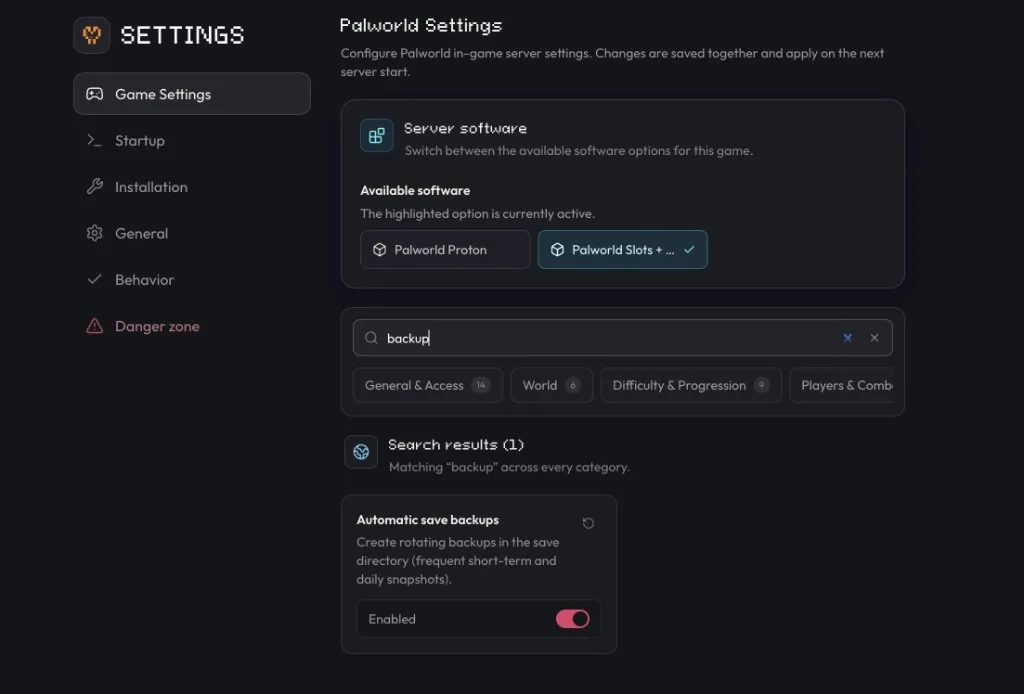
Turn on Automatic save backups in Settings → Game Settings, or set bIsUseBackupSaveData to True in PalWorldSettings.ini, to create rolling save backups automatically, from 5 saves every 30 seconds up to 7 saves per day.
Palworld can keep rolling backups of its own save data. Turn on Automatic
save backups and it copies the current save into a backup folder on a fixed
schedule, so you can roll back a world without needing a full server restore.
In PalWorldSettings.ini that option is bIsUseBackupSaveData.
What the backup schedule looks like
Once enabled, Palworld keeps saves at four intervals, each tier holding a fixed number of recent copies:
| Interval | Saves kept |
|---|---|
| Every 30 seconds | 5 |
| Every 10 minutes | 6 |
| Every hour | 12 |
| Every day | 7 |
Older saves in each tier get overwritten as new ones come in, so the folder doesn't grow forever. The 30-second tier is what saves you from a bad death or a griefing incident a few minutes ago; the daily tier is what saves you from something that only got noticed a week later.
Enable it from Game Settings
Open Settings → Game Settings
Open your server in the dashboard and go to Settings → Game Settings.
Turn on Automatic save backups
Search for backup, then set Automatic save backups to Enabled.
Restart the server
Restart from the sidebar or Overview. See Start, stop & restart for the full rundown of the power controls.
Enable it manually
Stop the server
Palworld needs to be offline to reliably pick up a manual config edit.
Open PalWorldSettings.ini
Use your host's file manager, or connect over FTP/SFTP, and browse to
Pal/Saved/Config/LinuxServer/PalWorldSettings.ini (WindowsServer instead of
LinuxServer if you're self-hosting on Windows). On berrybyte, that's the Files tab.
Set bIsUseBackupSaveData to True
Find bIsUseBackupSaveData in the settings line and set it to True, then save the file.
Start the server
Start the server again from the sidebar or Overview.
Once the server is back online, Palworld creates a backup directory inside the save data folder and starts filling it in on the schedule above. From there you can restore an autosave backup whenever you need to roll a world back.
This is Palworld's own save-rotation feature, separate from berrybyte's server backup system. Autosave backups live inside your server's storage and cover Palworld's save files specifically; berrybyte's Backups system snapshots the entire server off-site, on its own schedule. Running both gives you a short-term rollback and a long-term safety net.
Frequently asked questions
What do automatic save backups do on a Palworld server?
They turn on Palworld's built-in rolling save backups, keeping a schedule of recent saves in a backup folder so you can restore an earlier point if the current save gets corrupted or a player loses progress.
How often does Palworld back up the save automatically?
Once enabled, it keeps 5 saves per 30 seconds, 6 saves per 10 minutes, 12 saves per hour, and 7 saves per day, each tier overwriting its oldest entry as new saves come in.
Do I need to restart my Palworld server after enabling autosave backups?
Yes. Restart the server after turning on Automatic save backups so the setting takes effect and the backup folder starts filling in.
Is Palworld's autosave backup the same as a berrybyte server backup?
No. Autosave backups are a Palworld feature that copies save files inside your server's own storage. berrybyte's Backups system is a separate, off-server snapshot of the whole server that survives even if the server itself is wiped.