Restore an autosave backup on a Palworld server
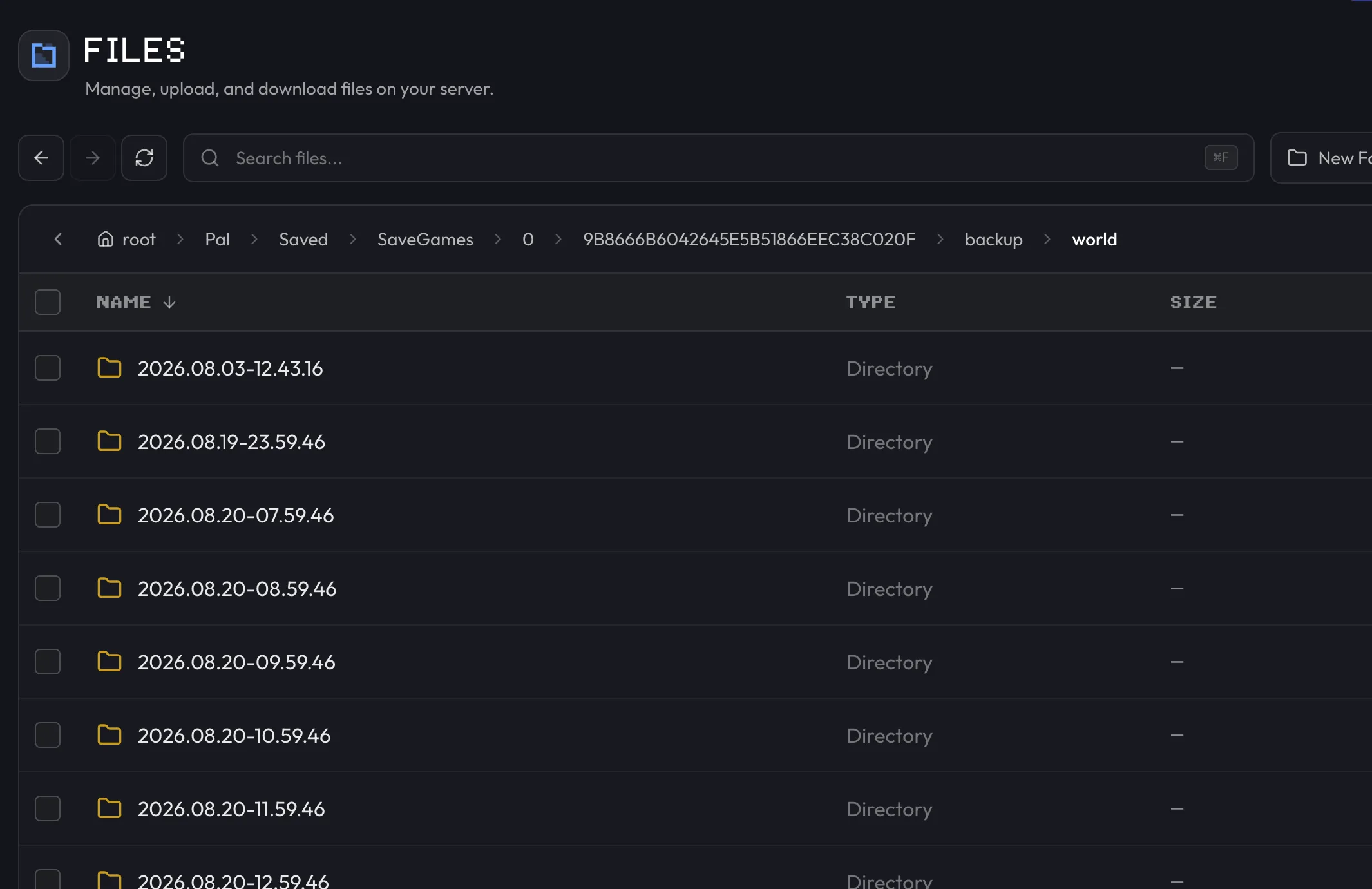
Stop the server, browse to Pal/Saved/SaveGames/0/<ID>/backup/world in your file manager or over FTP, then copy a chosen backup folder's contents into Pal/Saved/SaveGames/0/<ID>/ to overwrite the current save and roll the world back.
Restoring an autosave backup copies an earlier save from Palworld's backup folder back into the live save location, rolling the world and player progress back to that point. It requires autosave backups to already be enabled, since that's what creates the backup folder in the first place.
Find your save ID
Palworld stores saves under Pal/Saved/SaveGames/0/<ID>/, where <ID> is a
long hex folder Palworld generates when the world is first created. It isn't
something you set yourself. Open Pal/Saved/SaveGames/0/ in your file
manager, or over FTP/SFTP, and you'll see that one folder; backups for the
world live inside it at Pal/Saved/SaveGames/0/<ID>/backup/world. On
berrybyte, that file manager is the Files tab.
Restore a backup
Stop the server
Palworld needs to be offline before you overwrite save files, otherwise the running server can write over your restored copy.
Open the backup folder
In your file manager or over FTP/SFTP, browse to
Pal/Saved/SaveGames/0/<ID>/backup/world. On berrybyte, that's the Files tab. Each
subfolder here is a snapshot taken on the schedule from the
autosave backups guide.
Pick the backup you want
Open the folder for the point in time you want to roll back to and select everything inside it.
Copy it into the live save location
Copy or move the selected files into Pal/Saved/SaveGames/0/<ID>/, overwriting the current
save. Exact button labels in the file manager may vary, but the goal is the same: the
backup folder's contents need to replace the live world files in that <ID> folder.
Start the server
Start the server again from the sidebar or Overview.
Overwriting the current save discards any progress made after the backup you're restoring. If you want to keep the option of going back further, take a copy of the current save before you overwrite it.
Once the server starts back up, it loads the restored save. This also fixes a common symptom where the server appears wiped, prompting players to create a new character even though their base and progress are intact: that's usually a save-loading problem rather than genuine data loss, and restoring a recent backup resolves it.
If restoring doesn't bring back what you expected, or you want a copy of the whole server rather than just Palworld's own save files, see server backups for the dashboard's separate, off-server snapshot system.
Frequently asked questions
How do I roll back my Palworld world to an earlier save?
Stop the server, browse to Pal/Saved/SaveGames/0/<ID>/backup/world in Files, pick the backup you want, and copy its contents into Pal/Saved/SaveGames/0/<ID>/, overwriting the current save. Start the server again once the files are in place.
What is the <ID> folder in the Palworld save path?
It's a unique folder name Palworld generates for your world. Open Pal/Saved/SaveGames/0/ in Files. The long hex folder there is your <ID>. Backups live inside it at backup/world.
Can restoring an autosave backup fix a Palworld server that looks wiped?
Often yes. A server that suddenly prompts new character creation or looks like base progress vanished is frequently a save-loading issue rather than real data loss, and restoring a recent autosave backup resolves it.
Do I need autosave backups enabled before I can restore one?
Yes. Restoring only works if Automatic save backups was already turned on and had time to create backups. See Enable autosave backups on a Palworld server to turn it on first.